
AI Coding for Beginners: Build ESP32-S3 Projects with Seeed CodeCraft
Published by Vivian van Zyl in ESP32 Microcontrollers the 09/17/2026 at 06:51 pm

Programming a microcontroller has traditionally meant setting up toolchains, finding board definitions, learning pin mappings, installing libraries, compiling firmware, and then figuring out how to flash and debug it. That is a lot to take on before you have even made an LED blink.
AI vibe coding changes that workflow quite a bit. With the right hardware-aware environment, you can describe what you want to build, let the AI generate the application, and then compile, flash, test, debug, and refine it in one place.
Here I am using the Seeed SenseCAP ESP32-S3 Sense and Seeed CodeCraft to build two small projects from scratch: a heartbeat LED and a camera application that captures photos and displays them through a serial web page.
Table of Contents
- The Hardware: SenseCAP ESP32-S3 Sense
- Getting Started with CodeCraft AI
- First Project: Create a Heartbeat LED
- Refining the Program with a Plain-Language Prompt
- Building a Camera Application with AI
- When the First Version Fails: Debug with the AI
- Successful Photo Capture
- Why This Workflow Is Useful for Beginners
- Start Small, Then Build Something Useful
The Hardware: SenseCAP ESP32-S3 Sense
The board used here is the Seeed SenseCAP ESP32-S3 Sense, a small ESP32-S3 microcontroller board with a camera module, microSD card slot, external 2.4 GHz antenna connection, and accessible I/O pins.
It is the same broad class of processor hardware used inside many compact radio and mesh devices. For example, a Meshtastic or MeshCore node combines software running on a processor like this with a LoRa radio module to create a mesh node.
For this exercise, though, the focus is not LoRa. It is about using AI to create firmware for the board without manually writing the application code.
The ESP32-S3 Sense is a useful little platform for experimenting because it provides more than just an LED. The onboard camera makes it possible to create something practical very quickly.
Getting Started with CodeCraft AI
CodeCraft is Seeed Studio's AI-driven development environment. After signing in and opening a workspace, the layout is familiar if you have used modern AI tools: there is a chat area for prompts and a hardware selection area for supported boards.
The important step is selecting the exact board, in this case the ESP32-S3 Sense. Once the hardware is selected, CodeCraft has the relevant technical context available, including the board's pin usage and documentation. That saves you from having to explain how the camera is wired or search for the correct low-level configuration before starting.
The basic vibe coding pattern is straightforward:
- Select the microcontroller board.
- Describe the application you want in plain language.
- Allow the AI to generate, review, and compile the firmware.
- Flash the firmware directly to the connected board.
- Use the debugger and test tools to validate the result.
- Describe any changes or errors, then create a new version.
The key point is that you still decide what the project should do. The AI handles much of the implementation work, including board-specific details, source generation, compilation, and firmware packaging.
If you want to try the same environment, you can open Seeed CodeCraft and select a supported board from the workspace.
|
First Project: Create a Heartbeat LED
The best place to start is with something simple. The initial prompt is essentially:
I am using an ESP32-S3 Sense. Please create a heartbeat LED application that flashes on and off.
That is enough to get the AI working. CodeCraft reads the relevant board information, identifies the onboard LED configuration, writes the code, compiles it, reviews it, and creates the first release, version one.
At the end of that process, the workspace provides several useful things:
- The generated source code
- A compiled firmware image ready to flash
- A release version for the project
- Flash controls
- Debug controls
For this simple program, the onboard LED turns on for one second and off for one second, while printing its state through the serial debug output.
Flash the Firmware Directly from the Browser
Connect the ESP32-S3 Sense to the PC with a USB cable. In CodeCraft, choose Connect and Flash, select the detected device, usually the JTAG connection, and start the flash process.
The built-in flasher means there is no need to leave the environment and open a separate utility. Once flashing completes, the board restarts with the new firmware and the LED begins blinking.
This is a big part of what makes the workflow approachable. You are not only generating code with AI. You are also compiling and deploying the result without having to assemble a separate development setup.
Use the Built-In Debugger
After confirming the LED is blinking, disconnect from the flashing session and open the debug tool. Connect to the same device again and the serial output shows the application running, with repeating LED on and LED off messages.
The debugger also allows commands to be sent to the board. That becomes very useful once the application is more complicated and needs interactive testing.
CodeCraft also allows the generated project to be downloaded in two forms:
- Arduino sketch: the source code that can be opened and compiled elsewhere.
- BIN firmware: the compiled, merged firmware image ready to flash.
So, even though CodeCraft handles the complete browser-based workflow, you are not locked into it. You can take the source and firmware into another environment whenever you want.
Refining the Program with a Plain-Language Prompt
Once the one-second heartbeat LED application is working, changing it is simply a matter of asking for the change. Instead of manually finding and editing the delay value, the follow-up request is to make the LED flash every five seconds.
CodeCraft modifies the application, compiles the new firmware, and produces version two. Looking at the generated code reveals that the delay has changed from 1,000 milliseconds to 5,000 milliseconds.
Of course, an experienced developer could make that one-line change manually. The point is the workflow:
- Describe the intended behavior.
- Let the AI update the implementation.
- Review the result if desired.
- Flash the new release.
- Test it on real hardware.
After version two is flashed, the LED stays on for five seconds and off for five seconds. The workspace keeps both versions, so the earlier release remains available alongside the newer one.
That version history is useful. You can return to an earlier version, inspect its source, download its Arduino sketch or BIN firmware, and flash it again if needed.
Building a Camera Application with AI
Blinking an LED is a good first test, but the ESP32-S3 Sense has an onboard camera, so it is worth doing something more interesting.
The next prompt asks CodeCraft to create a camera application with a serial-connected web interface. The goal is to display images in real time and provide a button that tells the ESP32-S3 camera to capture and share a picture.
This is a much bigger task than toggling an LED. A manual build would require understanding how the camera is connected, choosing the correct camera libraries, configuring the firmware, implementing serial communication, and building the HTML page that receives and displays the image.
CodeCraft works through those steps itself. It reads board documentation, builds the firmware, creates the web serial page viewer, reviews the generated code, applies fixes where necessary, and creates a first release.
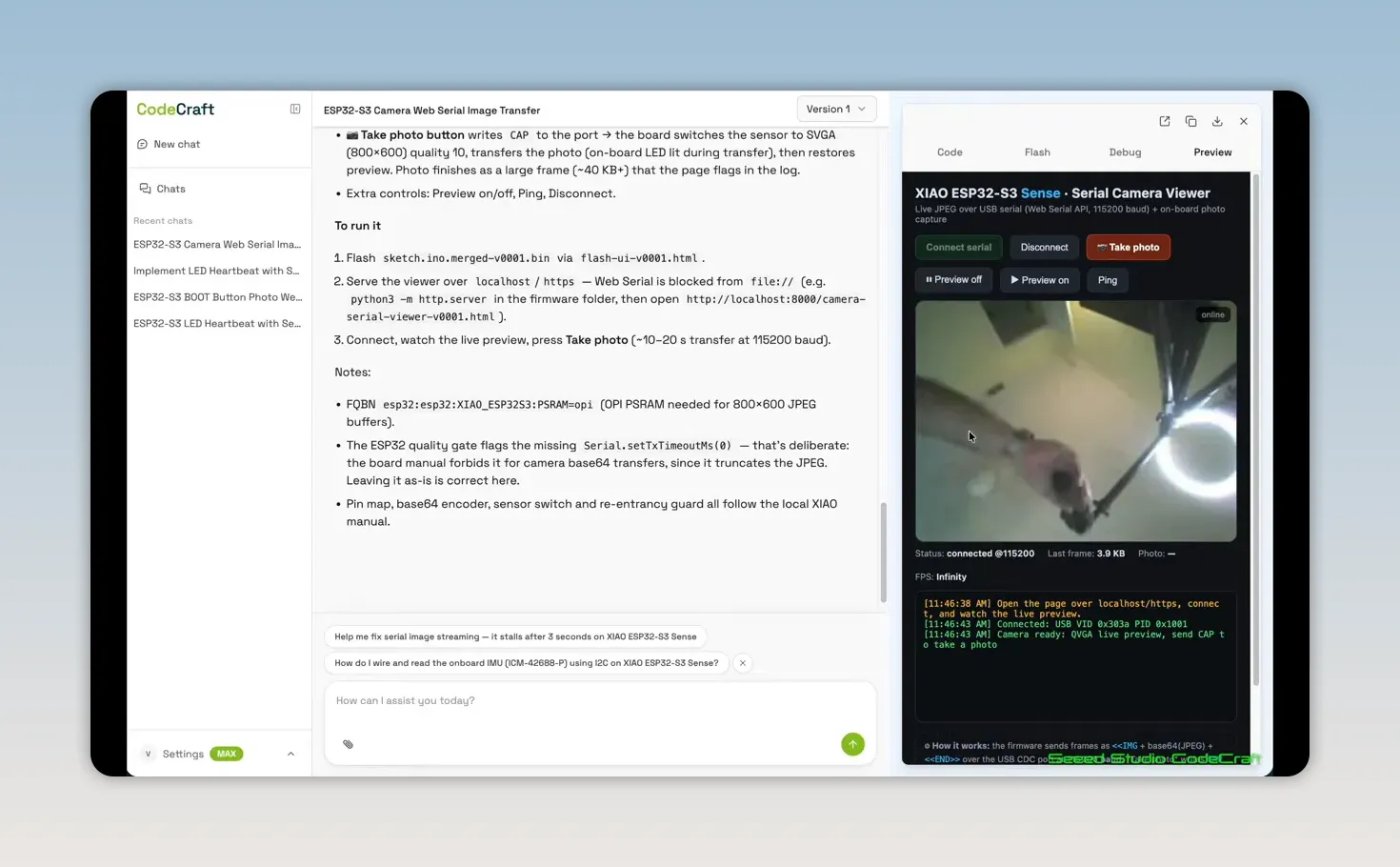
The generated project includes extensive firmware code as well as the HTML viewer. As with the LED project, both the firmware and Arduino sketch can be downloaded.
Flash and Connect to the Serial Camera Viewer
Flash the camera firmware using the same Connect and Flash process. Once the new application is installed, open the generated preview page and connect through serial.
The preview can display a live image from the ESP32-S3 Sense camera. From there, pressing the capture button should request a photo from the board and transfer the image through the serial connection to the page.
The board also has Wi-Fi and Bluetooth capability, so other firmware projects could use those connections instead. This particular application uses serial, but it demonstrates the wider idea: you can prompt the AI to create different communication approaches around the same hardware.
When the First Version Fails: Debug with the AI
The first attempt at photo capture did not work. The live preview appeared, but pressing the photo button returned a frame capture failure.
This is exactly where a tool like this needs more than code generation. It needs a practical debugging loop.
First, use the debug connection to ask what command should be sent to the board to capture a picture. The answer is to send CAP. Sending that command produces the same frame capture failure, confirming there is a genuine problem rather than only a web-page issue.
The next step is simple and very effective: copy the debug error and give it back to the AI, explaining that the failure appears while trying to capture an image.
CodeCraft reviews the documentation and the available debug information, suggests why the problem may be occurring, and generates a fix. In this case, the live preview was likely interfering with capture. The AI creates an updated firmware release, version two, with the required changes.
This is the practical AI development cycle:
- Build an initial version.
- Test it on the actual device.
- Use logs and debugging output to identify what failed.
- Feed the concrete error back into the AI.
- Generate and flash a corrected version.
- Test again.
AI does not mean every first attempt will be perfect. It does mean that you can move from a failure to a focused fix without having to start from scratch or become an expert in every underlying library first.
Successful Photo Capture
After flashing the corrected firmware, the serial preview reconnects successfully. With live preview turned off, the capture button now retrieves a photograph from the ESP32-S3 Sense camera.
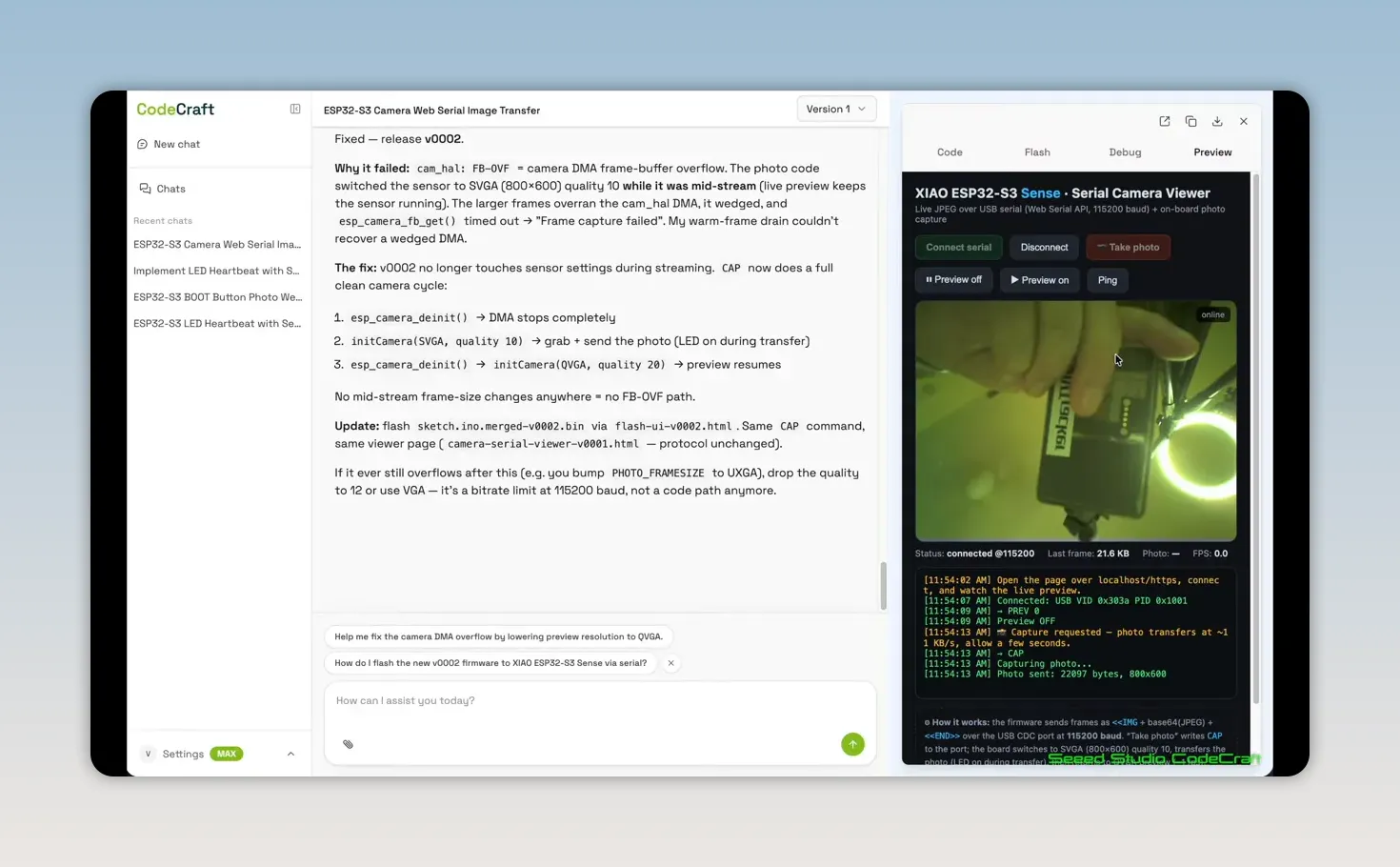
The HTML viewer itself is a complete file that can be downloaded. If you want to take the project further, you can host or modify that HTML page, keep using the generated firmware, or move the Arduino source into another toolchain.
By the end of the process, you have:
- A working camera firmware image on the ESP32-S3 Sense
- A serial-connected web page that previews and captures images
- The generated HTML source
- The Arduino sketch source
- Downloadable BIN firmware
- Version history for the project iterations
Why This Workflow Is Useful for Beginners
The big advantage here is not that traditional embedded development has disappeared. It is that the initial barrier is much lower.
Instead of beginning with pin maps, camera initialization code, libraries, compiler errors, and external flashing tools, you begin with an idea. You describe the hardware and the behavior you want. Then you test the result and improve it from real feedback.
CodeCraft brings the major parts together in one environment:
- Hardware-aware AI prompts
- Generated firmware and source code
- Compilation and release versions
- Built-in flashing
- Built-in serial debugging
- Project download options
- Generated interface files such as the camera viewer HTML
You do not need to write a single line of code to get started, but you still have access to the code when you are ready to learn from it, modify it, or take the project into another environment.
Start Small, Then Build Something Useful
A heartbeat LED may seem basic, but it proves the full chain works: prompt, generate, compile, flash, and test. From there, the camera example shows how quickly that same process can grow into a real application with firmware, a browser interface, serial communication, debugging, and versioned updates.
That is really the value of AI coding for microcontrollers. It gives you a much faster way to experiment with physical hardware, test ideas, and create useful little devices without getting stuck at the first technical hurdle.
The sky is the limit once you have firmware, source code, an HTML interface, debugging tools, and versioning all in the same place.
Frequently Asked Questions
Can CodeCraft program the Seeed SenseCAP ESP32-S3 Sense without manually writing code?
Yes. You can describe the application in plain language, and CodeCraft can generate, compile, and flash the firmware for the selected board.
Do I need a separate ESP32 flashing program?
No. CodeCraft includes a built-in Connect and Flash workflow for sending compiled firmware to the connected microcontroller.
Can I download the generated code?
Yes. The project can be downloaded as an Arduino sketch and as a compiled BIN firmware file.
How do I troubleshoot an AI-generated ESP32 project that does not work?
Use the built-in debugger, reproduce the problem, collect the debug output, and provide the error details to the AI so it can review and revise the project.