
Offline Texting with MeshOS, MeshCore on a LilyGo T-Deck
Published by Vivian van Zyl in Meshcore the 03/05/2026 at 05:59 pm

MeshOS, MeshCore transforms a LilyGo T-Deck into a fast, professional mesh node for offline communication. This firmware boots in seconds, offers a polished UI for chat and repeater management, and includes tools like a terminal, noise and signal meters, and offline maps. Below is a practical guide to getting the most out of MeshOS, MeshCore on a T-Deck.
Table of Contents
- Where to get MeshOS, MeshCore and how to flash
- First impressions: interface and lock screen
- Settings, GPS and why UTC time matters
- Chat: public channels and direct messages
- Advertise and Contacts
- Repeater management and the Finder
- Maps and offline tiles
- Trace routes, Terminal and advanced tools
- Noise and signal meters
- Performance and practical takeaways
- Next steps and recommended workflow
- How do I update MeshOS, MeshCore on my T-Deck?
- Final thoughts
Where to get MeshOS, MeshCore and how to flash
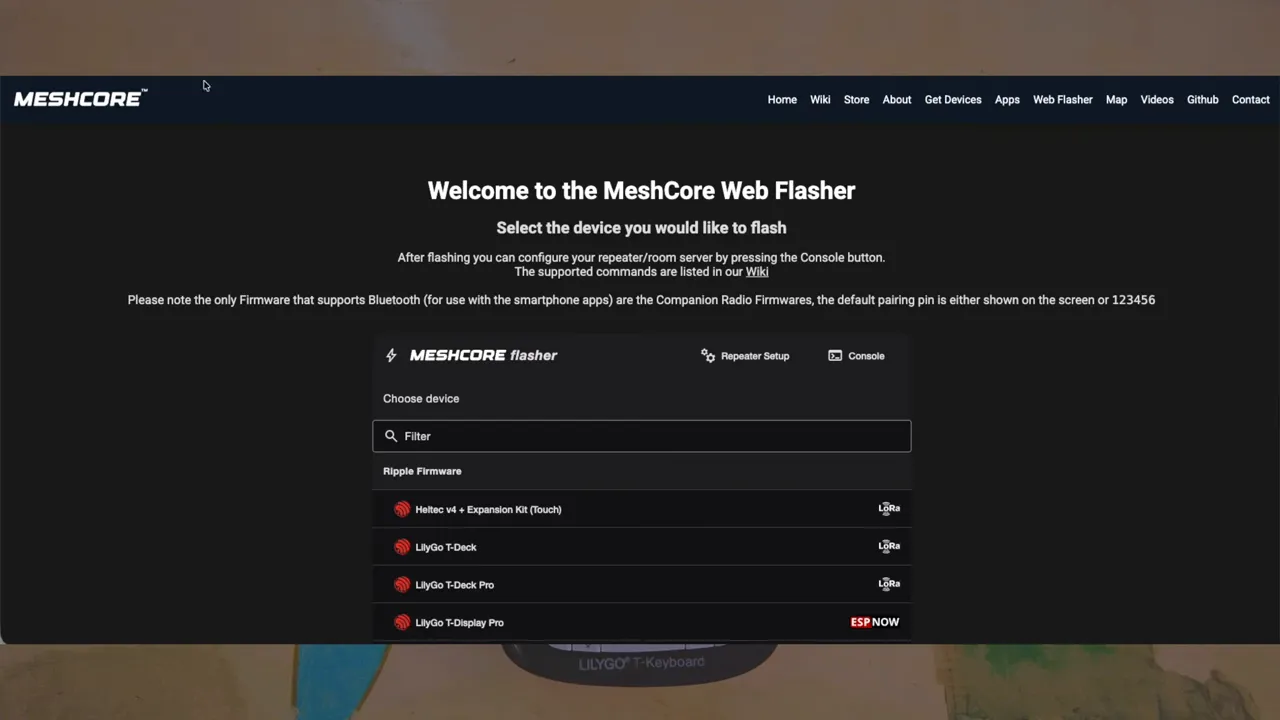
Download the MeshOS, MeshCore firmware from the official flasher page (flasher.meshcore.co.uk). You can flash devices normally with the web flasher or, if your board supports it, place the firmware.bin on the SD card and update directly from the device. This SD-card update method also makes future updates painless.
First impressions: interface and lock screen
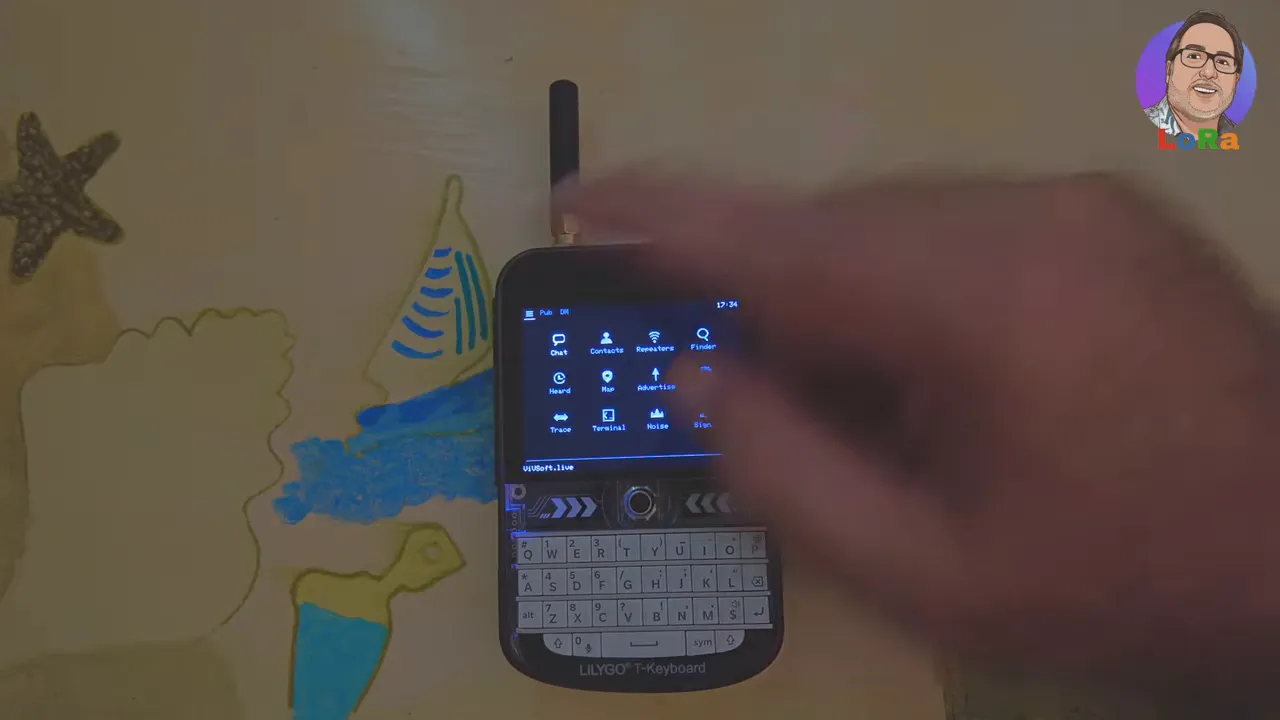
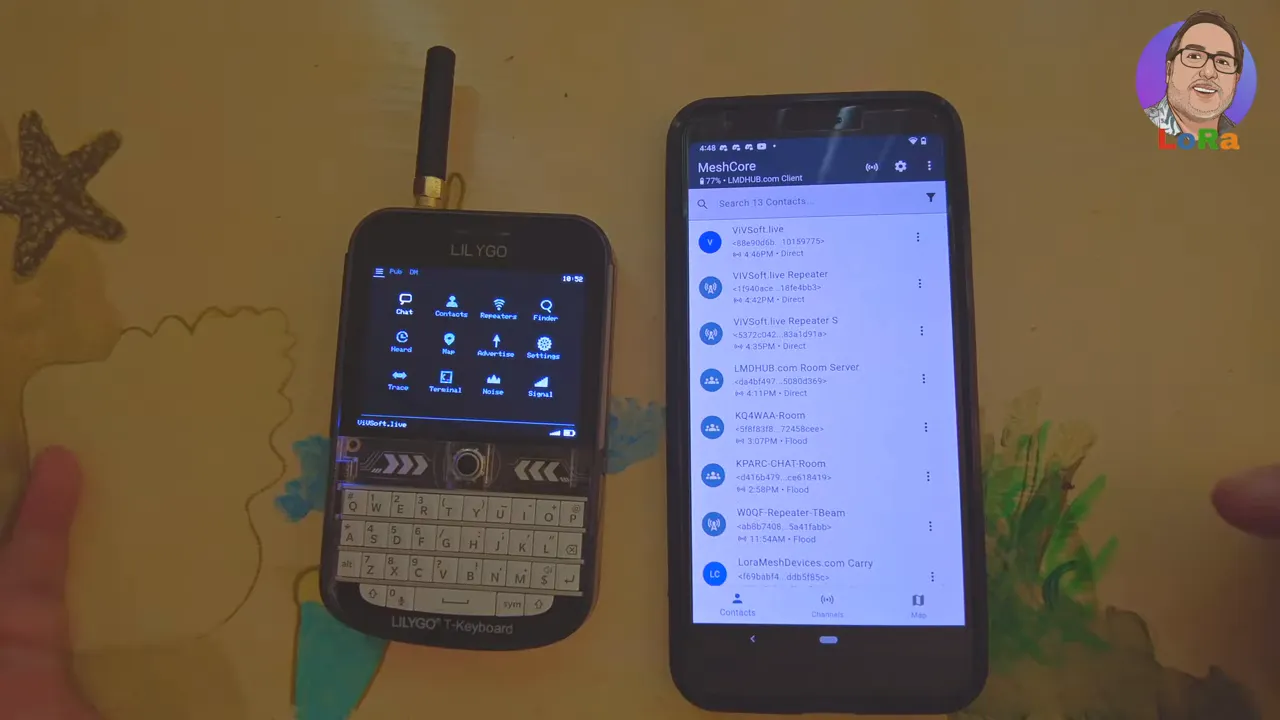
Boot time is one of the standout features. From cold start to usable in roughly four seconds makes the T-Deck feel like a purpose-built communicator rather than a hobby development board. After unlocking you’ll land on a clean home screen with:
- Time and date
- Message count and battery indicator
- Main menu tiles for Chat, Contacts, Repeaters, Finder, Heard, Map, Advertise, Settings, Trace, Terminal, Noise, and Signal
The UI is responsive and designed for quick access to the functions you need in the field.
Settings, GPS and why UTC time matters
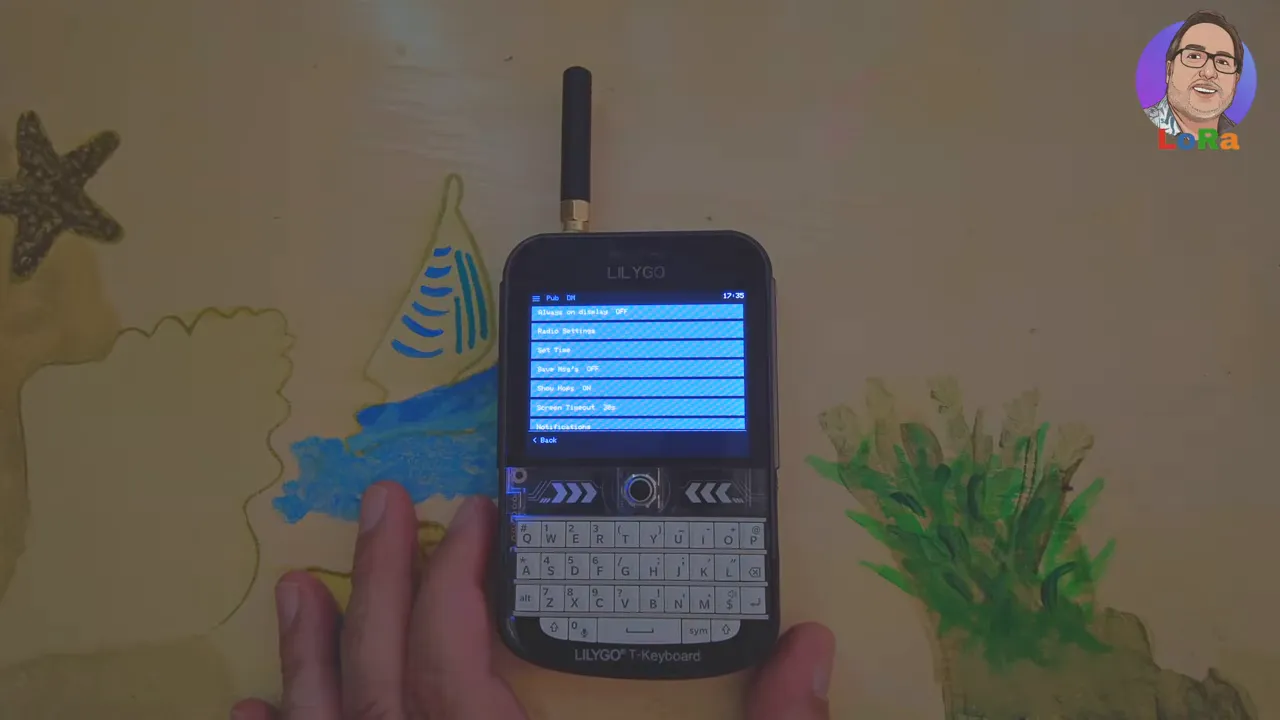
Before using mesh features, set the radio region and time. MeshOS, MeshCore relies on accurate timestamps for adverts and trace data. If the device clock is wildly incorrect adverts will appear as if they were sent decades ago and other nodes may ignore them.
Turn on GPS to auto-sync to UTC. If GPS is not available, set the time manually. Also check Settings for message saving, screen timeout, notifications, and the new mobile repeater options (available on certain frequencies).
Chat: public channels and direct messages
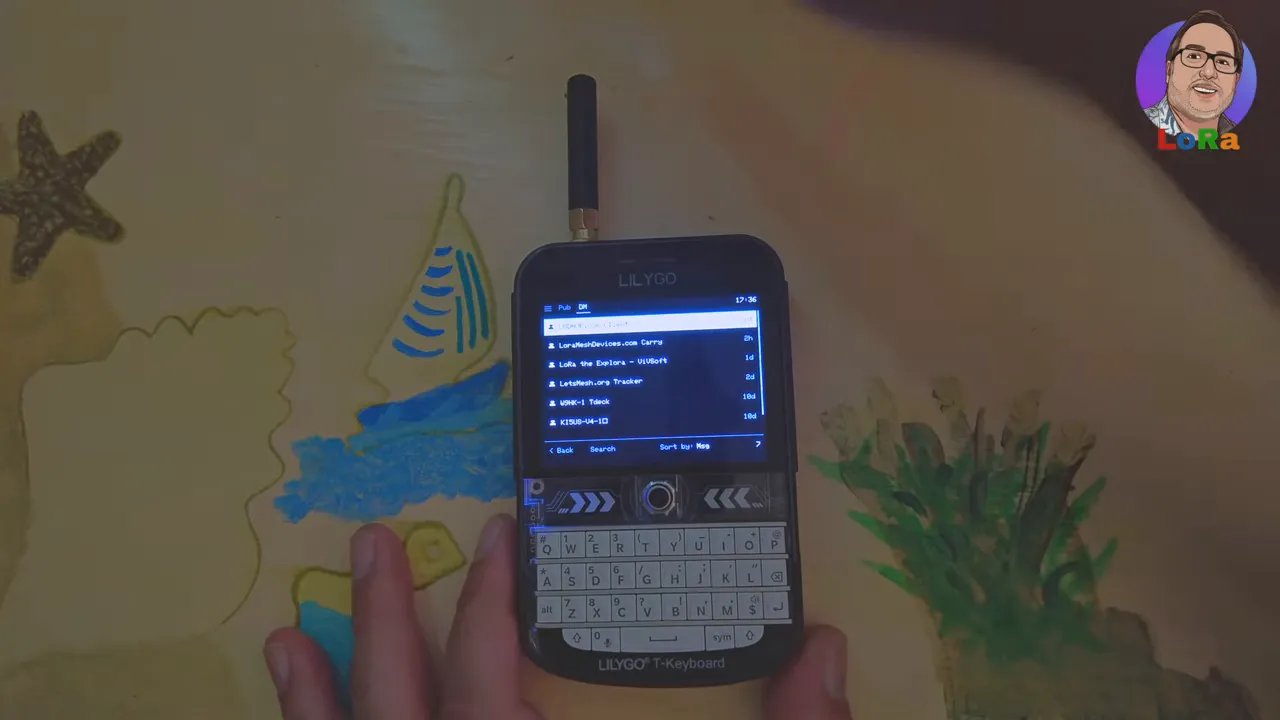
Chat functionality is split into public channels and direct messages. Direct messages list the devices you’ve had one-to-one conversations with. Sending prefers local delivery and falls back to flooding if direct routing fails. Chat shows delivery status and a red X for failures.
Advertise and Contacts
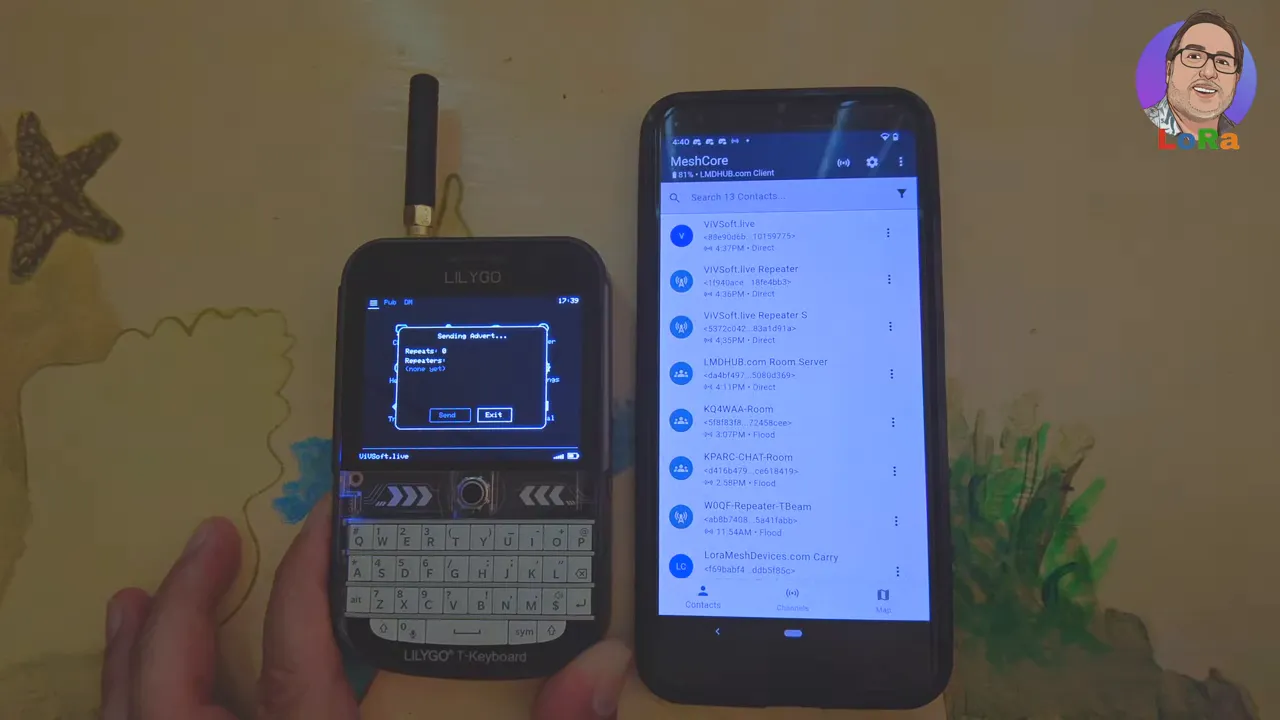
Advertising from MeshOS, MeshCore is straightforward: choose Advertise, pick the mode (for example flat routed), and send. The UI will show which repeaters heard you. If no repeaters appear, only local nodes will receive the advert. Use Contacts to see discovered devices and quickly advertise or connect.
Repeater management and the Finder
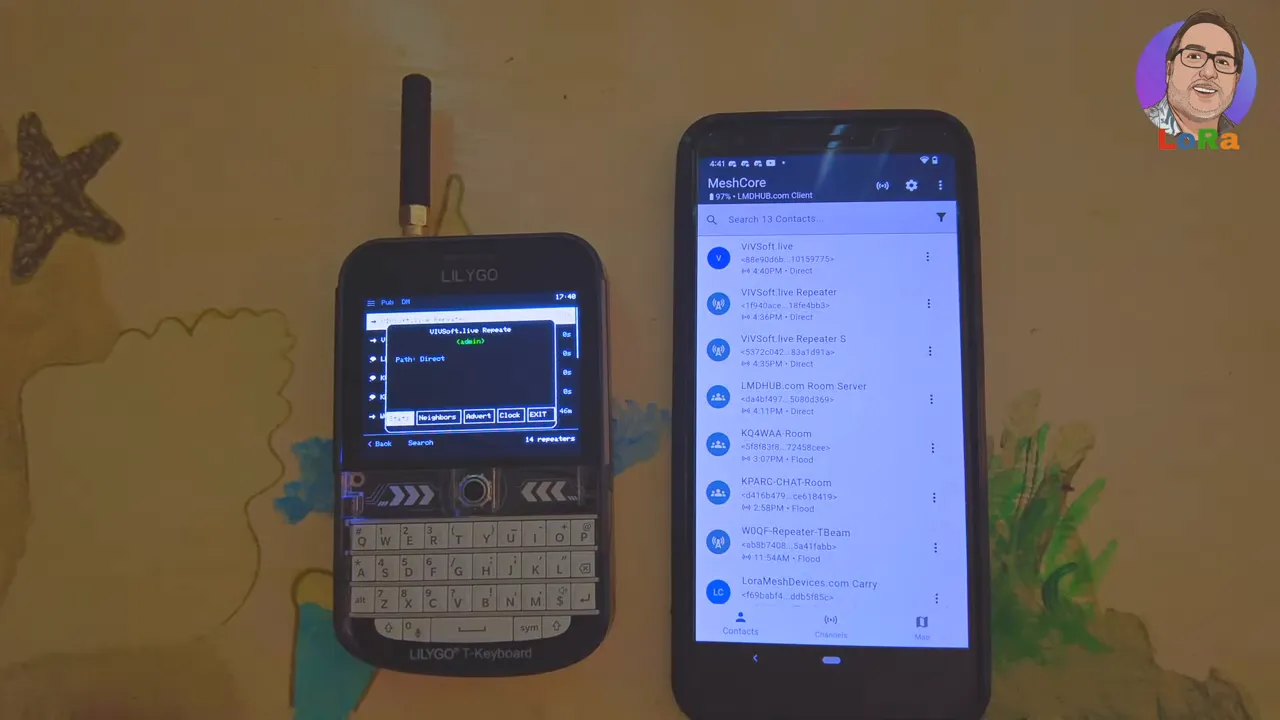
Repeaters are visible in their own menu where you can:
- Log into repeaters (password-protected) and request stats like battery and signal-to-noise ratio
- Ask repeaters for their neighbor lists
- Ask a repeater to send out an advert
- Set manual paths to preferred repeaters
The Finder lets you scan for nearby repeaters and add them to your device list for faster interactions later.
Maps and offline tiles
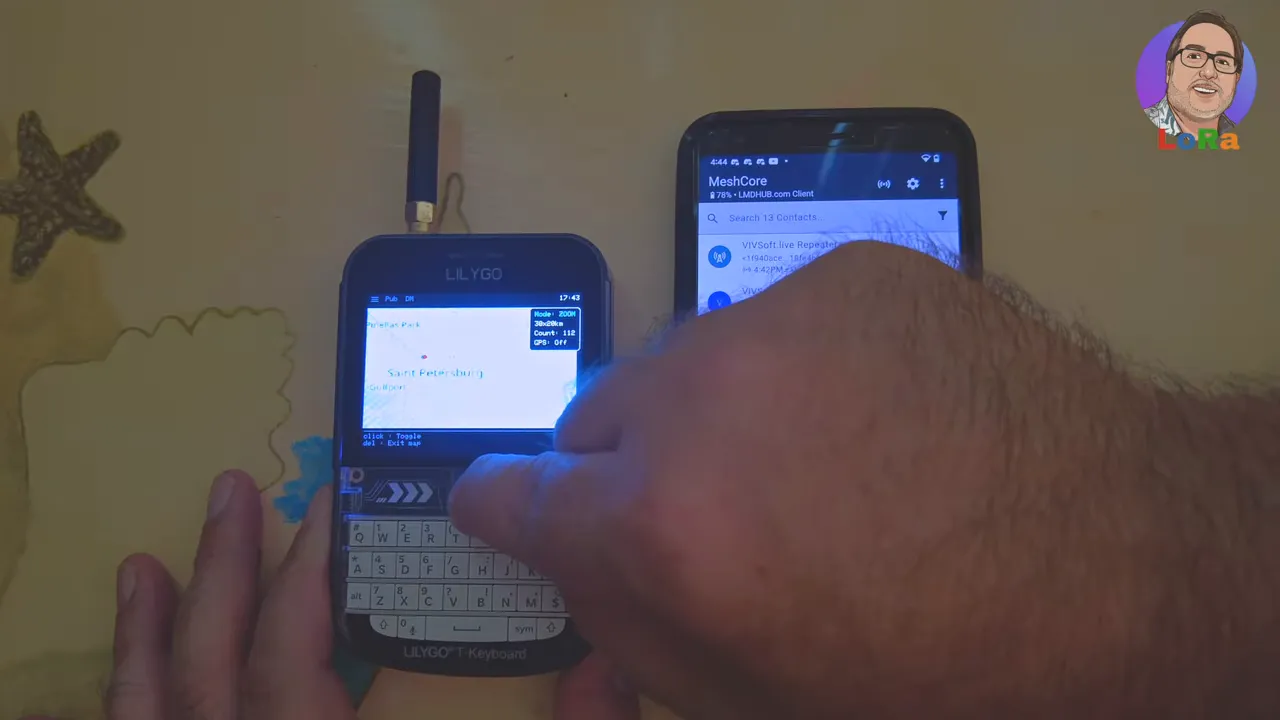
The T-Deck supports offline map tiles from an SD card. Drop tiles or a tiles folder onto the SD card and use the Map function to visualize discovered nodes and repeaters. The map helps plan routing and see where nodes and repeaters live geographically.
Trace routes, Terminal and advanced tools
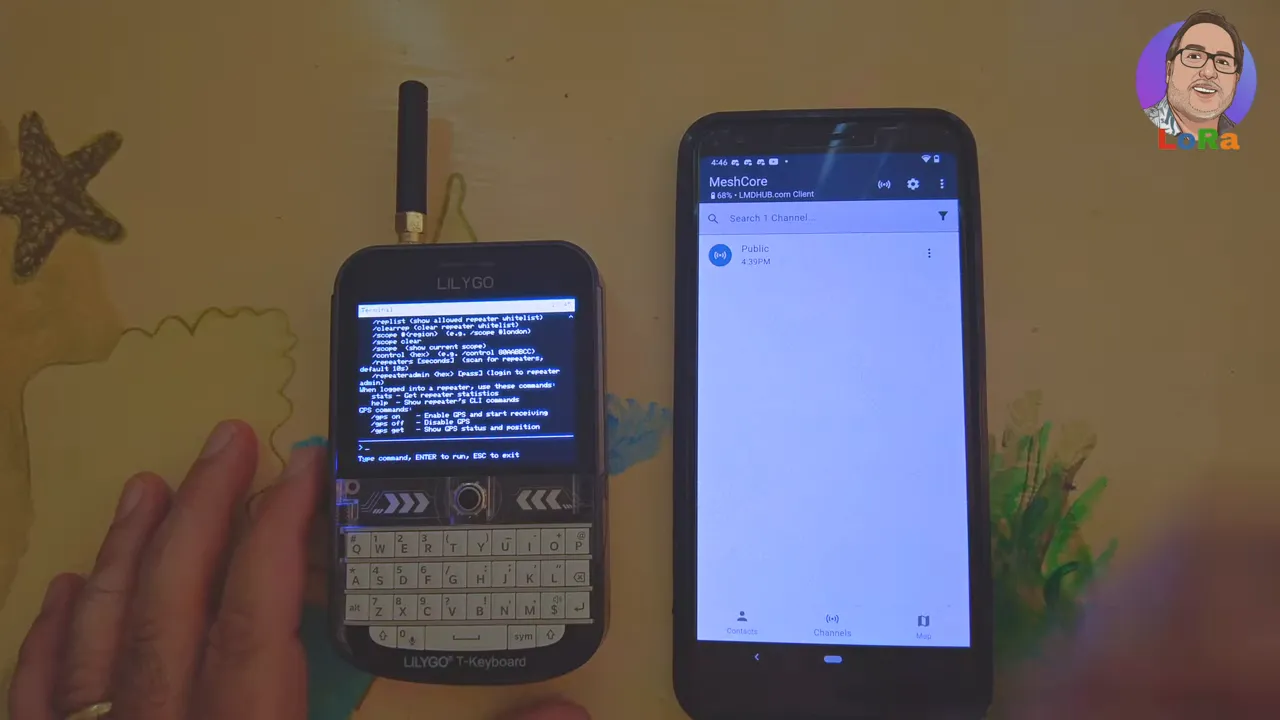
Trace provides hop-by-hop reporting between repeaters or devices so you can see exact signal-to-noise measurements per hop. The built-in terminal gives command-line access for advanced users, with commands such as advert and sd ls to inspect files on the SD card.
Noise and signal meters
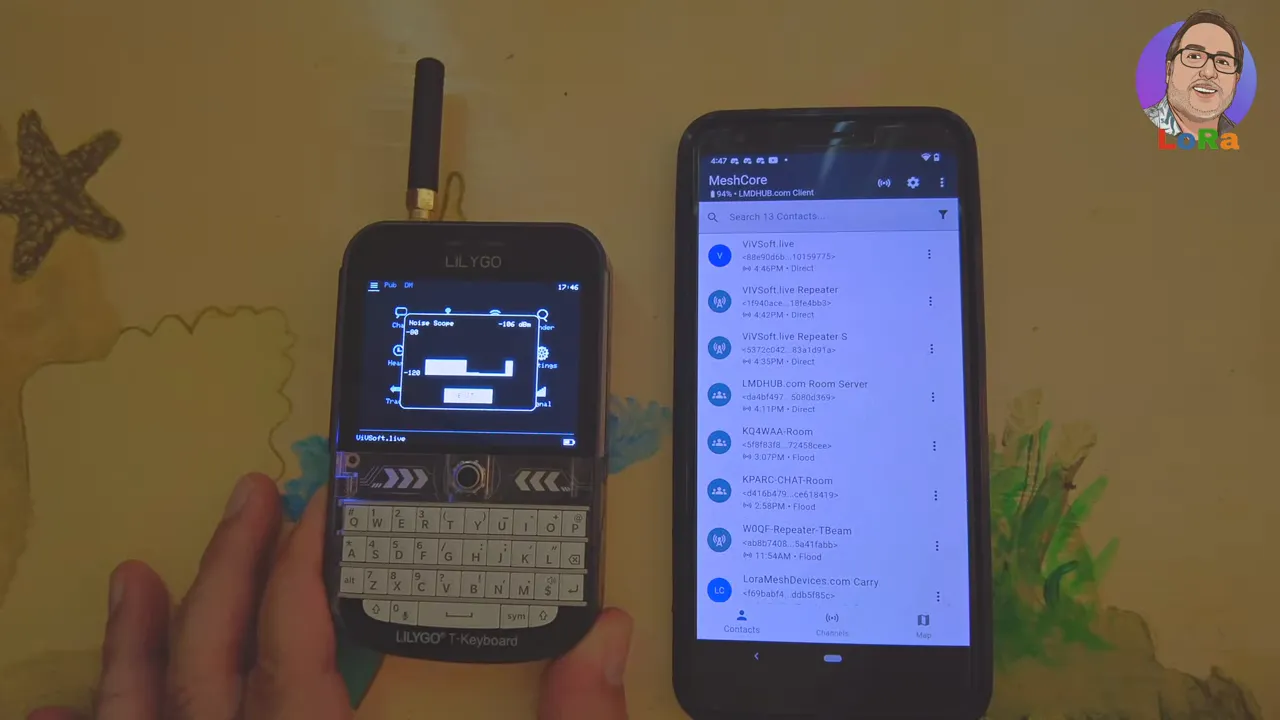
MeshOS, MeshCore includes live noise and signal graphs. Use the Noise graph to evaluate RF environment and test shielding or antenna placement. The Signal meter displays real-time link quality to a connected node.
Performance and practical takeaways
Key practical advantages:
- Ultra-fast boot times—ready in around four seconds
- Professional UI designed for field operation
- Advanced repeater controls for remote diagnostics and adverts
- Offline mapping and terminal access for advanced workflows
Be mindful of the license model. Some advanced features require an unlock key purchased from the MeshOS, MeshCore site. That unlock mechanism keeps development sustainable while letting users preview the interface before committing.
Next steps and recommended workflow
- Download MeshOS, MeshCore from the official flasher page and flash via web flasher or SD update.
- Set radio region, enable GPS to auto-sync UTC, or set time manually if GPS is unavailable.
- Load map tiles to the SD card for offline mapping.
- Scan for repeaters with Finder and add preferred nodes to your list.
- Use Terminal and Trace to troubleshoot routing and link quality.
How do I update MeshOS, MeshCore on my T-Deck?
Place the new firmware.bin on the SD card and use the firmware update option inside settings, or re-flash using the official web flasher at flasher.meshcore.co.uk.
Why is accurate time important for MeshOS, MeshCore?
MeshCore uses timestamps for adverts and trace data. Incorrect time (for example a device stuck at 1970) can cause other nodes to ignore your adverts. Enable GPS so the device auto-syncs to UTC or set the clock manually.
Can my T-Deck act as a repeater?
Recent MeshOS, MeshCore firmwares include a mobile repeater option, but it is available only on certain frequencies. Check settings and documentation for compatibility and licensing requirements.
What tools are available for advanced users?
A full terminal for CLI commands, trace for hop-by-hop analysis, noise and signal meters, and the ability to log into remote repeaters for stats and neighbor lists offer deep troubleshooting and configuration options.
Where can I find guides and community resources?
Look for community hubs and documentation specific to MeshOS, MeshCore for downloads, flasher tools, maps, and community posts. Many hubs include PDF guides and map resources to help with setup.
Final thoughts
MeshOS, MeshCore on a LilyGo T-Deck offers a polished, fast, and capable mesh communication platform for offline texting and network management. From rapid boot to robust repeater controls and offline maps, it brings the features needed for reliable field communication. If your goal is dependable mesh messaging and easy diagnostics, this firmware is worth trying.
Links: (Note: As an affiliate, I earn from qualifying purchases)
* LilyGo T-Deck - LilyGo T-Deck
* Seeed L1 Pro - Seeed L1 Pro
* Seeed Solar Node - Seeed Solar Node
* 915Mhz Alfa Antenna - 915 Mhz Antenna
* More Info about MeshCore - https://hub.lorameshdevices.com