
Unlocking Meshtastic's Store & Forward Feature: A Complete Guide
Published by Vivian van Zyl in Meshtastic the 05/29/2025 at 12:37 am

Welcome to an in-depth exploration of Meshtastic's powerful Store & Forward feature, brought to you by Vivian Van Zyl of LoraMeshDevices.com. This innovative functionality is a game-changer for anyone using Meshtastic devices, especially when you find yourself out of range of your mesh network. In this article, we’ll dive into how Store & Forward works, the hardware requirements, how to set up a private network to use this feature, and practical tips to ensure you never miss a message again.
Table of Contents
- What is Meshtastic Store & Forward?
- Understanding Frequency Slots and Private Channels
- Setting Up Your Store & Forward Network
- How Store & Forward Works in Action
- Hardware Compatibility and Limitations
- Setting Up Your Private Network: Step-by-Step
- Frequently Asked Questions (FAQ)
- Conclusion: Why Store & Forward is a Must-Have Feature
What is Meshtastic Store & Forward?
At its core, the Store & Forward feature in Meshtastic is designed to solve a common problem: what happens when your device goes out of range of the mesh network? Normally, if you’re disconnected, you miss any messages sent during that time. Store & Forward changes that by enabling a special node on the network to store messages temporarily. When your device reconnects, it can retrieve all the missed messages, keeping you in the loop no matter where you’ve been.
Sounds great, right? But before you get too excited, there are some critical limitations and requirements to understand:
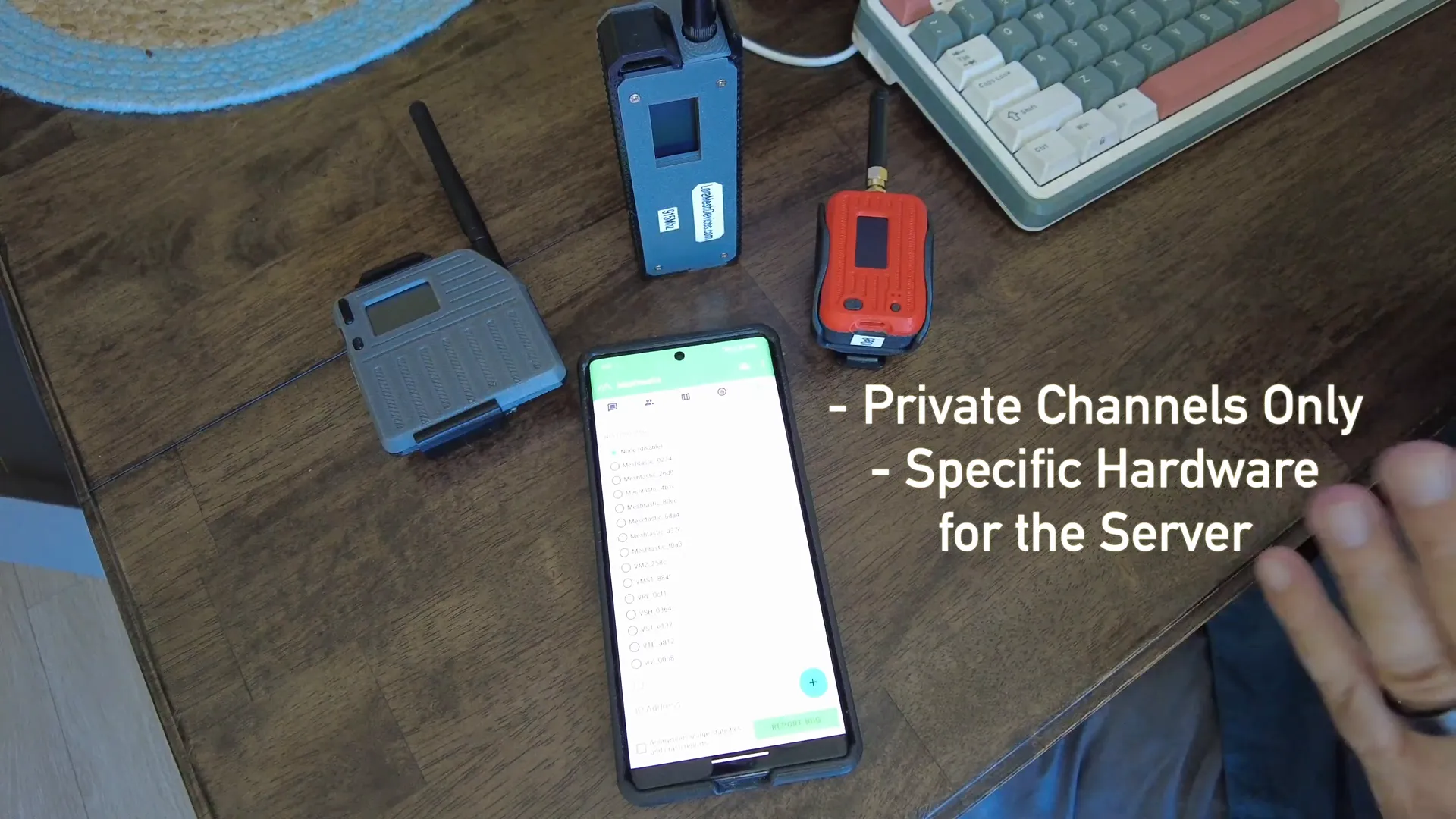
- It only works on private channels. Store & Forward is not available on the public Meshtastic networks.
- It requires specific hardware. The Store & Forward server node must be a device equipped with PSRAM (Pseudo Static RAM), not just flash memory. This is important because PSRAM provides the necessary runtime memory to store messages efficiently.
For example, the LilyGo T-Beam Supreme is one such device with 8MB of PSRAM, making it capable of acting as a Store & Forward server.
Understanding Frequency Slots and Private Channels
In Meshtastic, devices communicate over radio frequencies organized into frequency slots. By default, devices operate on frequency slot 20, which is the public mesh network managed by Meshtastic.
Each frequency slot can have several channels, with a default “long fast” channel usually configured, accompanied by an encryption key to secure the messages. The default encryption key often looks like AQ==, which is an 8-bit key, though longer keys (16-bit or 128-bit) can be used for more security.
To use Store & Forward, you need to create a private mesh network. This means:
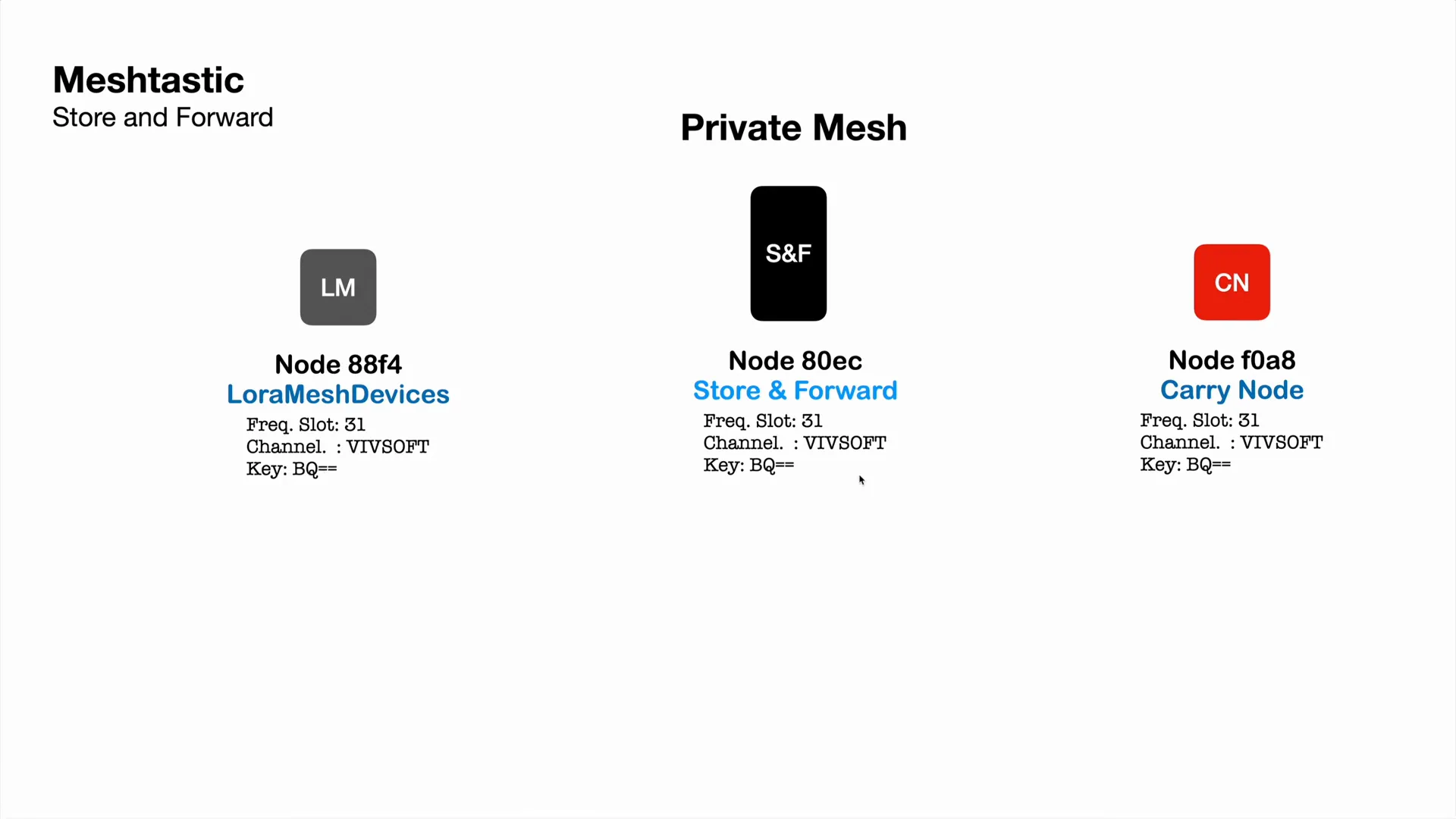
- Assigning a different frequency slot (for example, slot 31 instead of the default 20).
- Creating a custom channel name (e.g.,
VIVSOFTinstead of “long fast”). - Using a unique encryption key (such as
bq==) to secure the network traffic.
This setup ensures that only devices configured with the same frequency slot, channel, and encryption key can communicate — effectively isolating your network from the public one and other private networks.
Setting Up Your Store & Forward Network
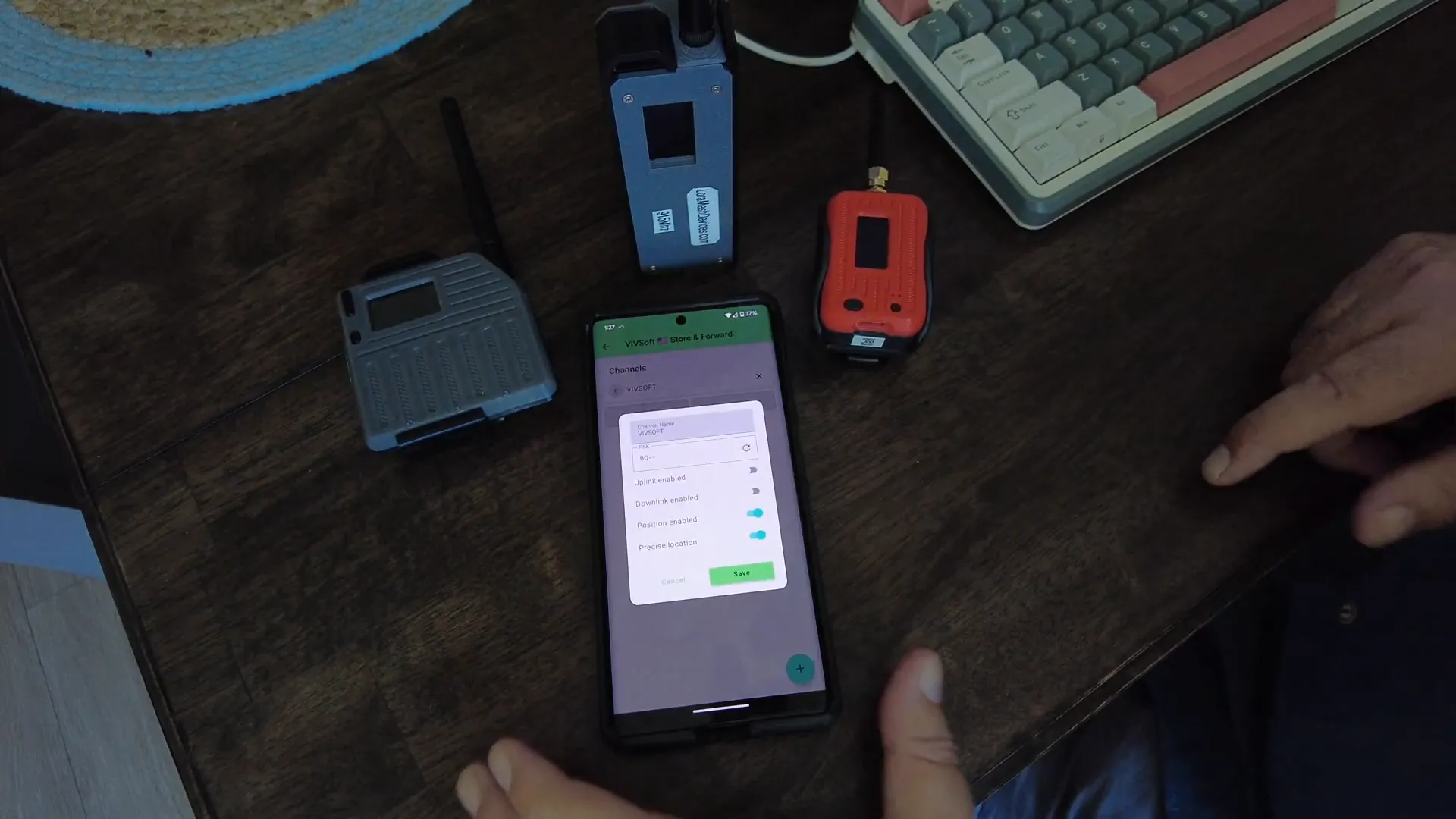
Here’s a practical example from my own setup where I used three Meshtastic devices:
- Store & Forward Node: A LilyGo T-Beam Supreme equipped with PSRAM acting as the server.
- Carry Node: Another Meshtastic device on the same private network.
- LoRa Mesh Node: A third device also on the same private network.
All three devices are configured to use frequency slot 31, channel VIVSOFT, and encryption key bq==. This means these three devices form a secure, isolated mesh where they recognize only each other as part of the network.
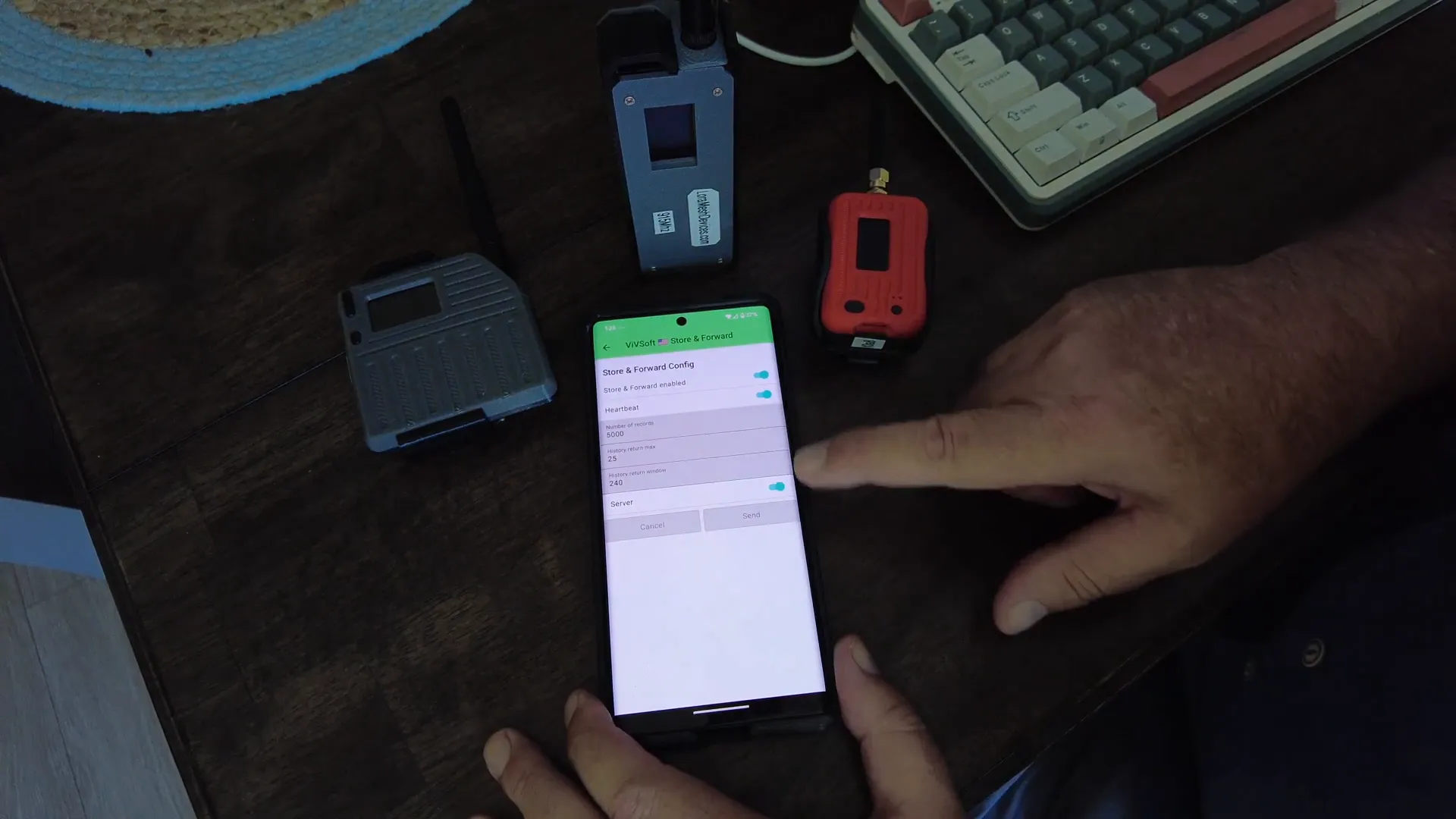
To verify the configuration on each node, you can check the radio settings and channels in the Meshtastic Android app. The Store & Forward server node will have the feature enabled explicitly in its configuration, along with settings like:
- Heartbeat enabled — so the server announces itself to the network.
- Storage capacity — in my case, I set it to keep up to 5,000 records, which can translate to around 11,000 messages, depending on message size.
- Message retention time — for example, 240 minutes (4 hours).
- Maximum number of messages returned per request — typically up to 25.
How Store & Forward Works in Action
To illustrate how Store & Forward functions, let’s walk through a scenario:
- Initial Communication: All three nodes are online and communicating on the private network. Messages sent on the
VIVSOFTchannel are received by all nodes. - Node Goes Offline: The Carry Node is switched off or goes out of range — simulating it being on a drive or away from the mesh.
- Messages Sent While Offline: The LoRa Mesh Node sends a “test message” on the private channel. Since the Carry Node is offline, it misses this message.
- Store & Forward Server Stores Messages: The Store & Forward node (with PSRAM) stores the missed messages during the Carry Node’s absence.
- Node Returns Online: When the Carry Node comes back within range, it reconnects to the private mesh.
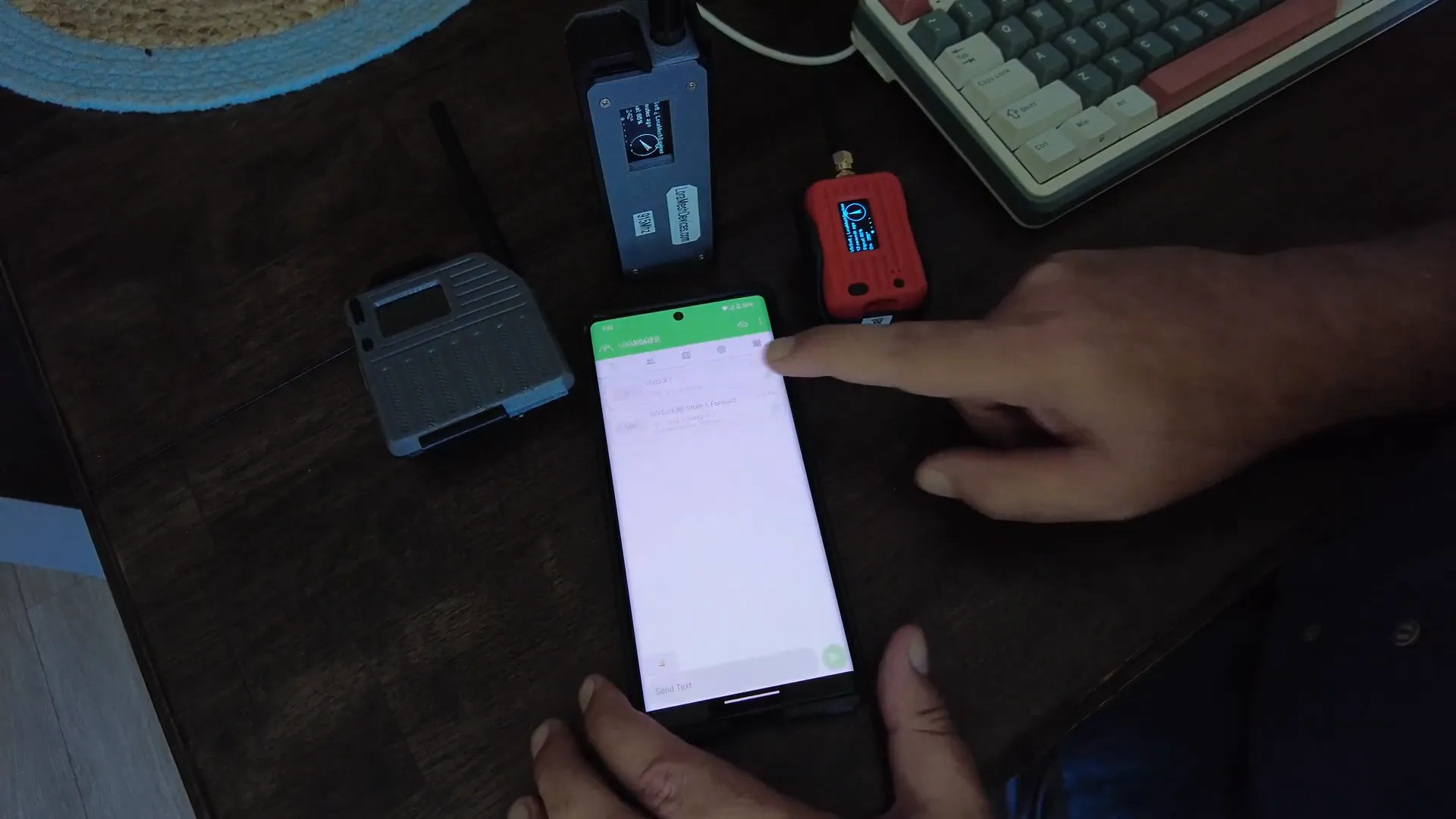
- Retrieving Missed Messages: On Android, you send a direct private message “SF” to the Store & Forward server node. This triggers the server to send all missed messages back to the Carry Node.
After this interaction, the Carry Node has all the messages it missed while offline, effectively “catching up” with the conversation.
Important Note for Different Platforms
On Android, the retrieval involves sending a private message with “SF” to the server. On Apple devices, you can long-press a conversation or message and select an option like “retrieve messages” to perform the same function.
This platform difference is important to keep in mind when setting up your network.
Hardware Compatibility and Limitations
Not all hardware supports Store & Forward. For example:
- HelTec V3 devices do not support this feature because they lack PSRAM.
- LilyGo T-Beam Supreme devices with 8MB PSRAM do support it and are recommended for Store & Forward server roles.
PSRAM is essential because it provides the runtime memory needed to buffer messages before forwarding them. Flash memory alone is insufficient for this task.
Also, remember Store & Forward is exclusive to private networks only — it will not function on public Meshtastic channels.
Setting Up Your Private Network: Step-by-Step
If you want to set up your own Store & Forward network, here’s a quick checklist to follow:
- Choose compatible hardware with PSRAM for your Store & Forward server device.
- Configure all devices to use a unique frequency slot (e.g., 31) different from the public default (20).
- Create a private channel with a custom name (e.g.,
VIVSOFT). - Set a unique encryption key for the channel to secure your messages.
- Enable Store & Forward on the server device and configure its parameters (heartbeat, storage size, retention time, etc.).
- Use the Meshtastic app on your phone (Android or Apple) to connect and test messaging.
- Test going offline and returning to verify the Store & Forward retrieval process.
Frequently Asked Questions (FAQ)
Q: Can I use Store & Forward on the public Meshtastic network?
A: No, Store & Forward only works on private networks with custom frequency slots and encryption keys.
Q: What hardware supports Store & Forward?
A: Devices with PSRAM, such as the LilyGo T-Beam Supreme, support Store & Forward. Devices without PSRAM, like HelTec V3, do not.
Q: How does Store & Forward know which messages to send when I reconnect?
A: When you reconnect, you send a private message with the text “SF” to the Store & Forward server. The server then sends you all missed messages stored during your absence.
Q: How long are messages stored on the Store & Forward server?
A: This is configurable, but in my setup, messages are retained for 240 minutes (4 hours) before being discarded.
Q: Can multiple private networks coexist without interference?
A: Yes, by assigning different frequency slots and unique encryption keys, multiple private networks can operate independently without cross-communication.
Q: Is the Store & Forward feature compatible with both Android and Apple devices?
A: Yes, but the method to retrieve missed messages differs. Android requires sending a private “SF” message, while Apple devices use a long-press menu option.
Conclusion: Why Store & Forward is a Must-Have Feature
Meshtastic’s Store & Forward feature is a remarkable addition to your mesh networking toolkit, especially if you rely on uninterrupted communication over long distances or in challenging environments. By setting up a private network with compatible hardware, you ensure that missing messages while out of range is a thing of the past.
Remember, the key to a successful Store & Forward setup lies in:
- Choosing the right hardware with PSRAM capabilities.
- Creating a secure private network with unique frequency slots and encryption keys.
- Properly configuring the Store & Forward server node with adequate storage and retention settings.
- Understanding how to trigger message retrieval on your device platform.
With these pieces in place, you can unlock Meshtastic’s full potential and enjoy seamless, reliable communication across your mesh network.
Happy meshing!